
How to Enter a Supplier Remittance
Use this feature to apply an entire supplier check to multiple un-received remittances in one transaction.
Please note: The initial release supports full remittances only. Partial remittances and recalls are not currently supported through this process and will be addressed in a future phase.
Example: You receive a $1,000.00 check from Disney. Follow the steps below to select the applicable Disney remittances and apply the full check amount.
Step 1: Start a New Supplier Remittance
From the Commission Remittances screen:
- Click Enter Supplier Remittance.
- In the pop-up window, complete the following fields:
- Remittance Amount: Enter the total amount of the supplier check (example: $1,000.00).
- Remittance Date: Defaults to today’s date but can be edited if needed.
- Check/Confirmation Number: Enter the check or confirmation number provided by the supplier.
- Product: Select the applicable supplier (example: Disney).
Once all fields are completed, click Start.
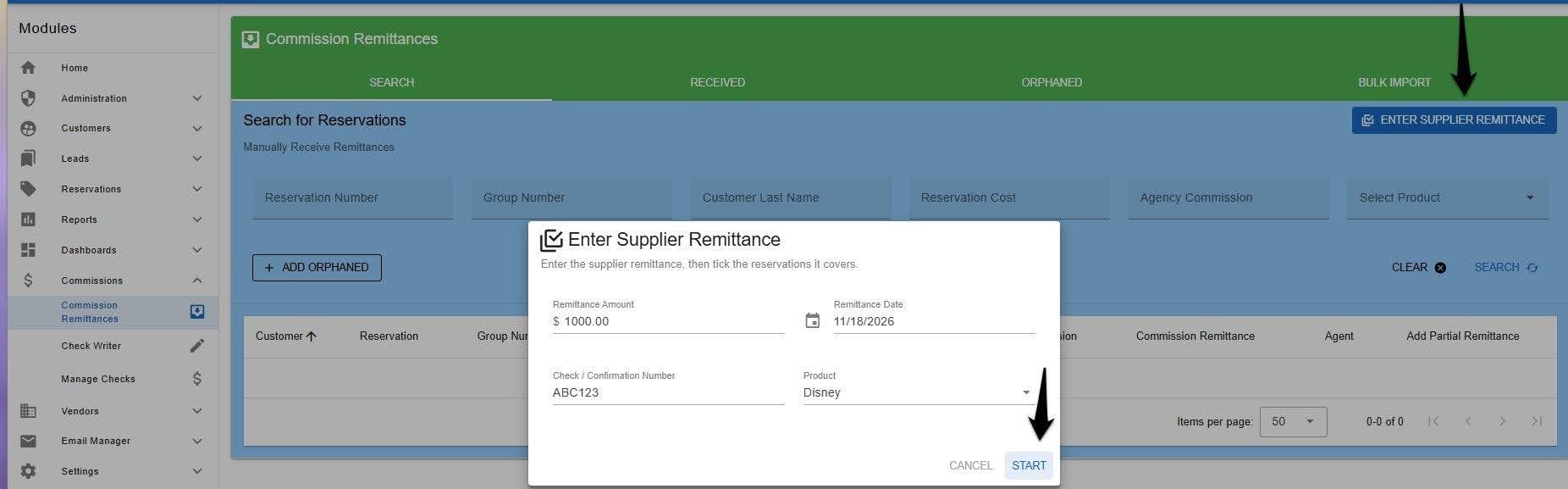
Figure 1. Enter the supplier check details and select Start.
Step 2: Select the Remittances to Include
After you click Start, the system displays all un-received remittances for the selected supplier associated with your agency.
You can locate and select the remittances in either of these ways:
- Use the search fields: Enter search criteria at the top of the screen to find individual remittances.
- Select from the list: Review the displayed remittances and check the box next to each item you want to include.
As you select remittances, the system automatically adds their amounts to the selected total. The system will allow you to proceed only when the selected total exactly matches the supplier check amount.
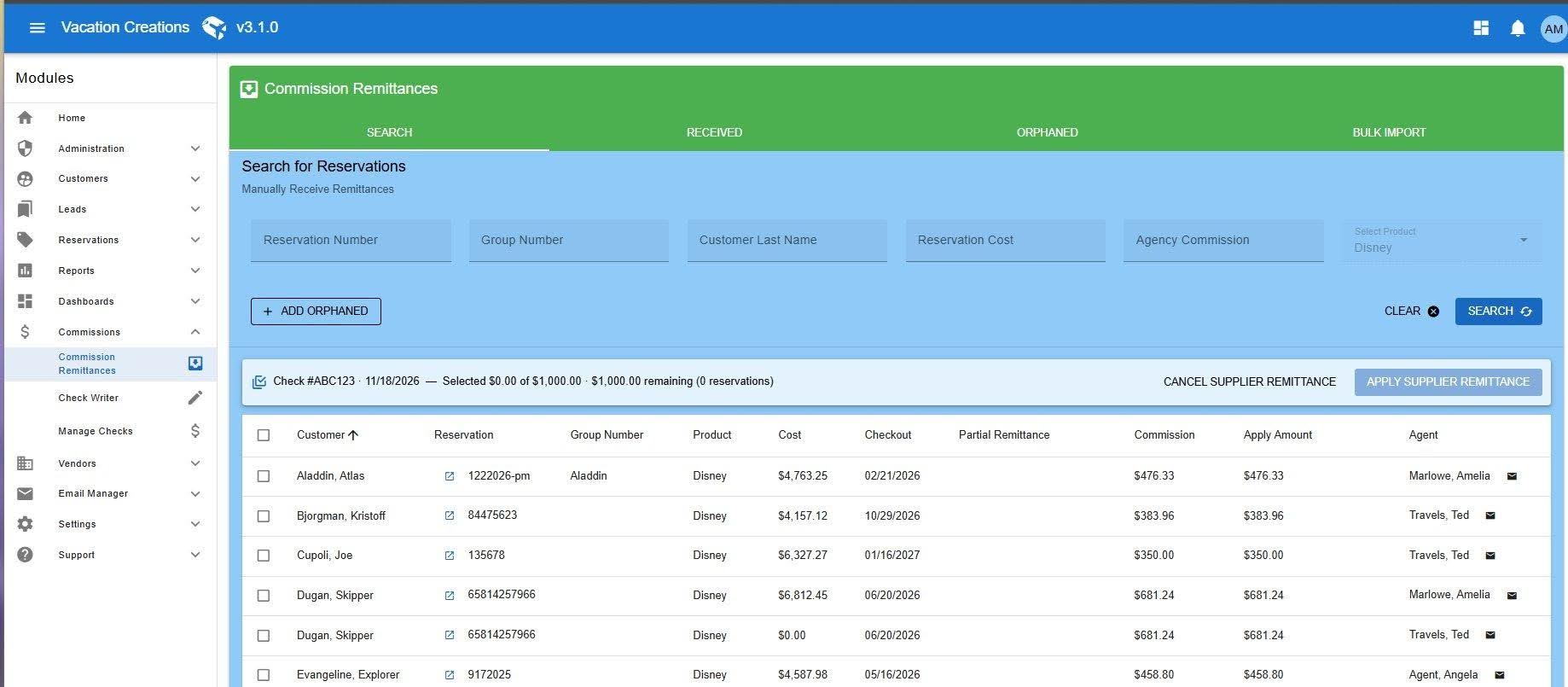
Figure 2. Select the remittances covered by the supplier check.
Step 3: Review and Apply the Supplier Remittance
When the selected remittances total the exact amount of your supplier check, click Apply Supplier Remittance.
A confirmation window will display the reservations included in the remittance. Review the list to make sure the correct items have been selected.
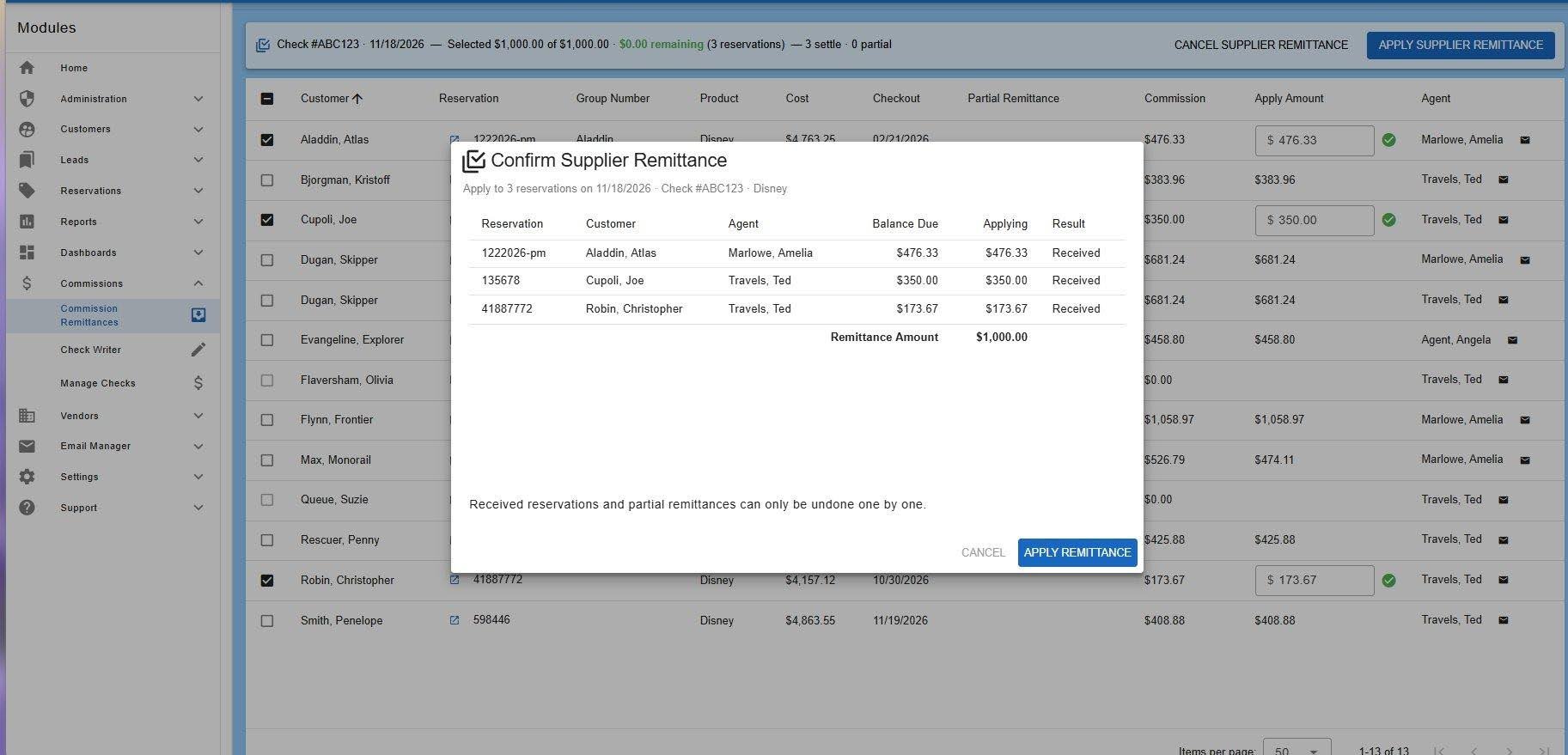
Figure 3. Review the selected reservations and the remittance amount.
If everything is correct, click Apply Remittance in the confirmation window to finalize the transaction.
Step 4: Remittance Complete
Once finalized, all selected remittances associated with that supplier check will be remitted together.
Reminder: Confirm that the selected remittances match the full amount of your supplier check before applying the remittance.