Set It and Forget It with Auto-Pay
How to Set Up Auto-Pay in the User Account Profile
If you are an Admin or Agent with Self-Pay turned on, you can now securely store a payment method in your profile and have your subscription automatically processed each billing period.
Here’s how simple it is: (Screenshots below)
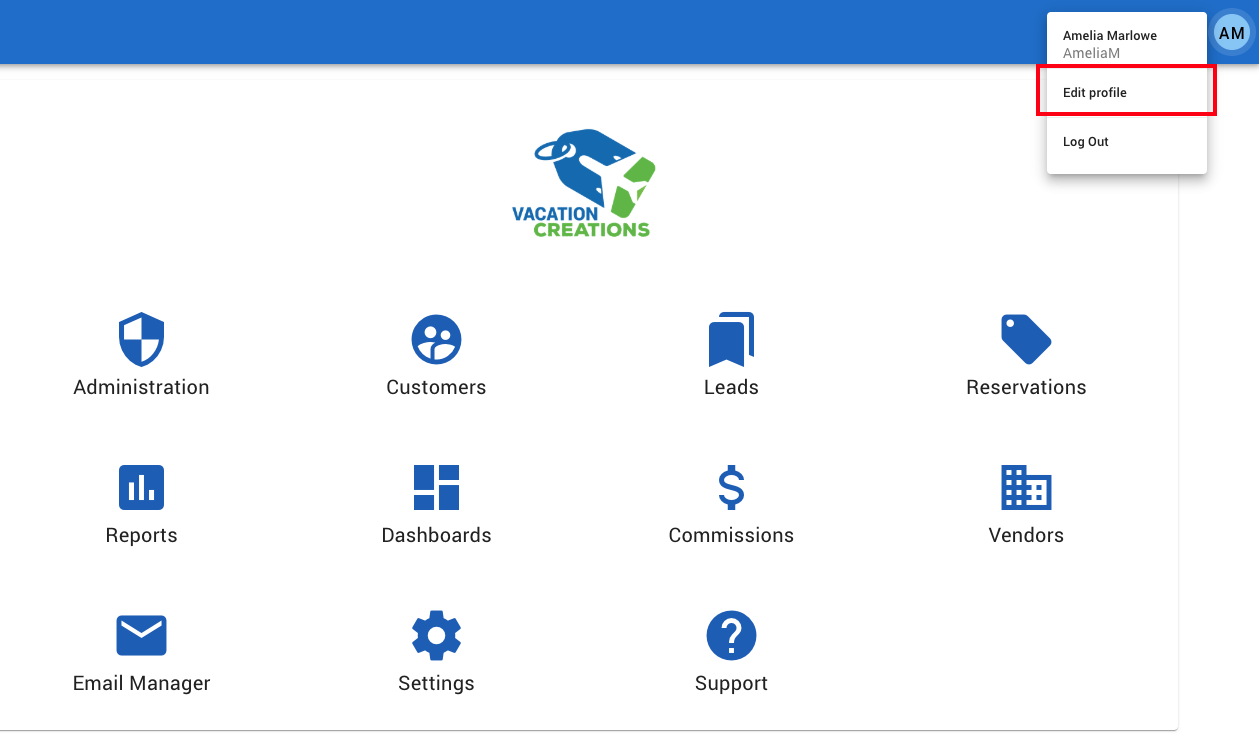
- Click the Blue Dot (your account profile) in the top right corner
- Go to Edit Profile
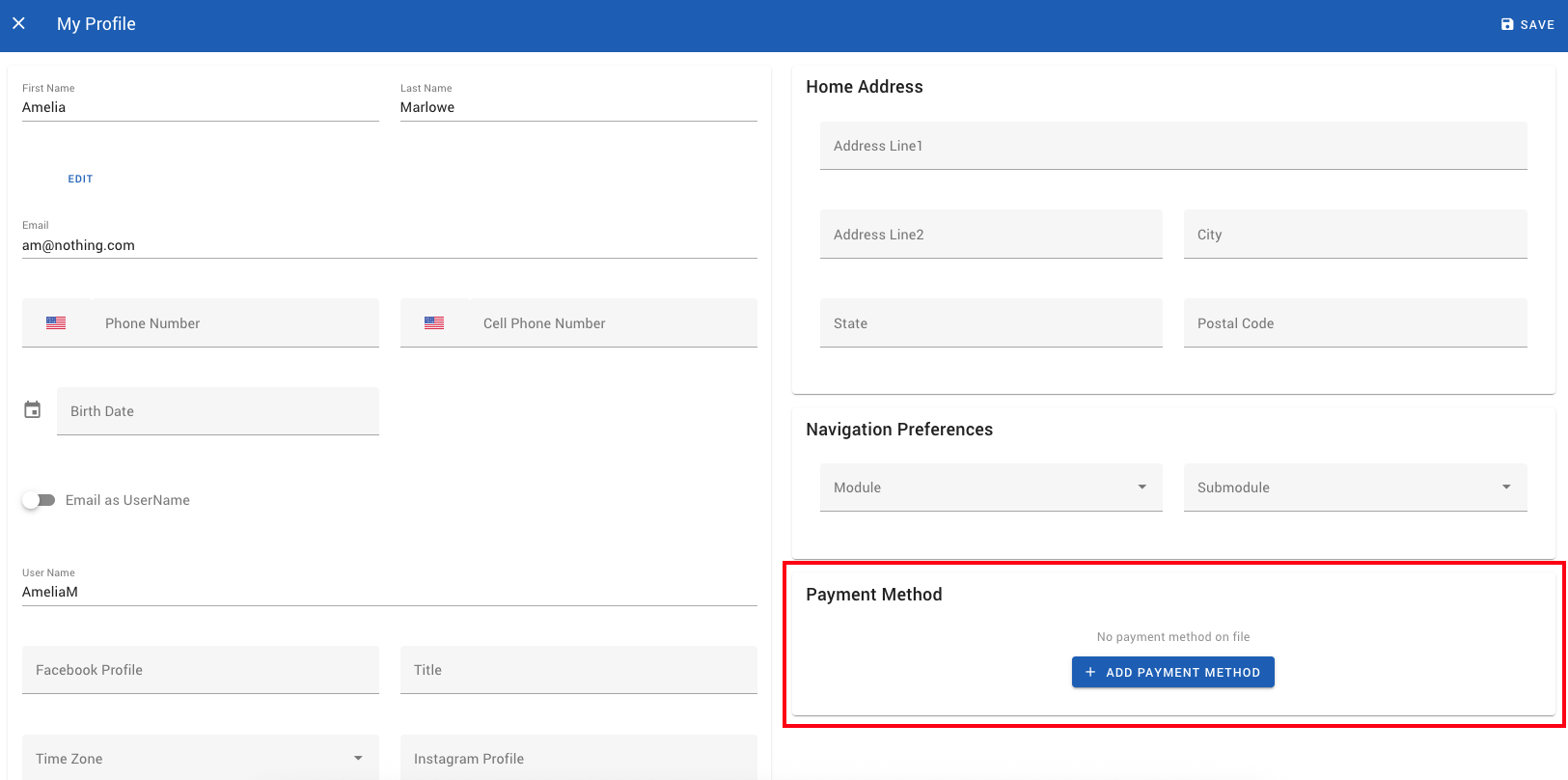
- Click Add Payment Method
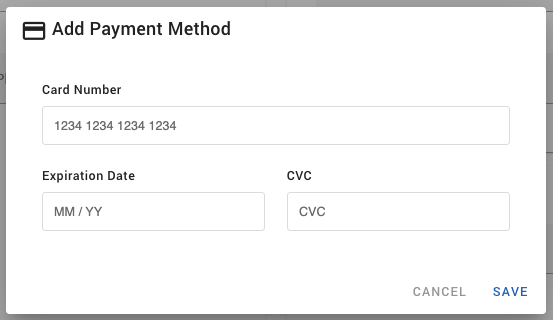
- Enter credit card information
That’s it.
Once your invoice is created for your billing period, your payment will automatically process.
A few important details to know:
- Monthly billing: Invoices created on the 1st of each month
- Quarterly billing: Invoices created on January 1, April 1, July 1, October 1
- Yearly billing: Invoice created on January 1
Once you enter a payment method, you are automatically opted in for Auto-Pay for your next recurring billing cycle. If you set up Auto-Pay in the middle of a month, it will begin with the next billing period.
Important reminder for Agency Owners:
If you are paying for your agents and need to remove a user from billing, you must make that user inactive before the invoice date. Since Auto-Pay processes shortly after the invoice is created on the 1st, any active user at that time will be included and charged for that billing period.
If you forget, be sure to deactivate the user before the next billing cycle so you are not charged again the following month or quarter.
Our goal is always to make Vacation Creations simple, intuitive, and efficient – and this feature is one more step toward saving you time and reducing administrative tasks.
- Billing cycles are Monthly, Quarterly, or Yearly
- Invoices are created on the first day of the billing period
- Auto-Pay runs on the 1st, approximately 10 minutes after the invoice is generated
Step 1.
Click the blue dot in the top right corner to open your Account Settings and choose Edit Profile.
Step 2.
Click Add Payment Method
Step 3.
Enter Credit Card Info and click Save