How to Use Emailed Confirmations
How to Use Emailed Confirmations
Automatically add reservations from vendor confirmation emails.
What it does
Emailed Confirmations lets you forward a vendor confirmation email straight into Vacation Creations. Our AI reads the email, pulls out the reservation details, and creates a draft reservation for you to review, correct if needed, and apply. No more retyping confirmation numbers, dates, or traveler names by hand.
You’ll find it under Reservations → Emailed Confirmations.
Step 1: Get your confirmation email address
Every VC account has its own unique confirmation email address. This is the address you’ll forward vendor emails to.
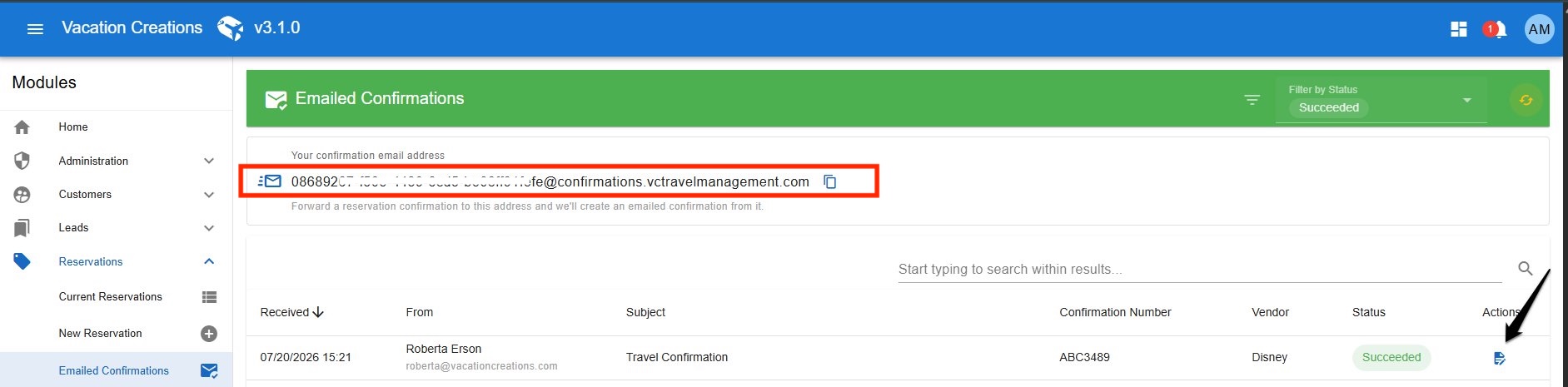
1. Go to Reservations → Emailed Confirmations.
2. Your personal confirmation email address is shown at the top of the page. Click the copy icon next to it to copy the address.
3. Save it somewhere handy, like your email contacts, so it’s easy to grab when a confirmation comes in.
Step 2: Forward a vendor confirmation email
When a vendor sends you a confirmation, forward it to your confirmation email address.
Important: the confirmation details need to be in the body of the email
The system reads text in the email body, not attachments. If the vendor’s confirmation comes through as a PDF attachment, use the PDF workaround below before forwarding. (scroll down to see instructions)
Step 3: Review and apply the reservation
Once your email is processed, it will appear on the Emailed Confirmations page with a status of Succeeded. Click the action icon next to it to open the extracted details.
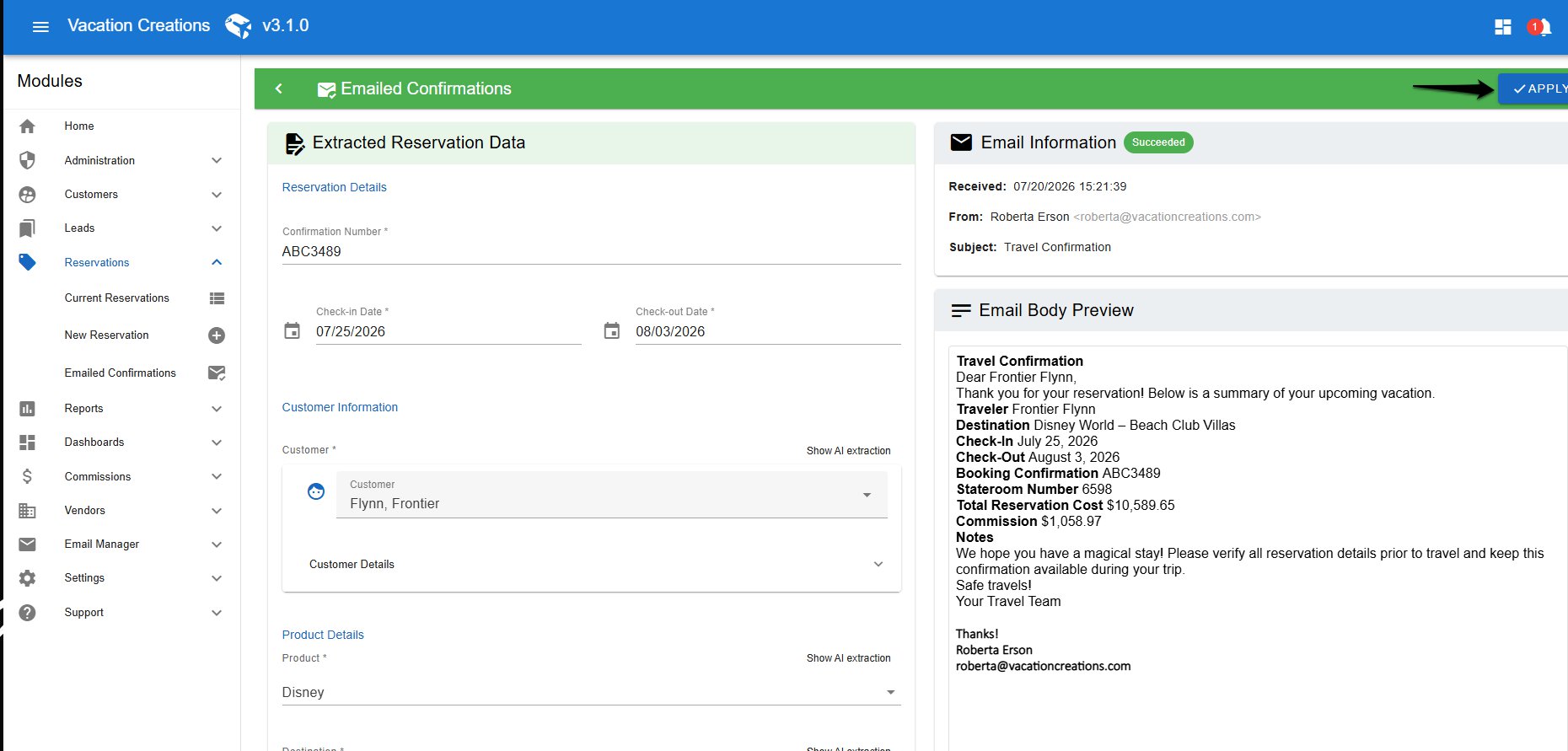
You’ll see the reservation details our AI pulled from the email: confirmation number, check-in and check-out dates, customer name, and product or destination. Review each field and correct anything that needs fixing, then click Apply to create the reservation.
Additional Info:
● Editable fields: confirmation number, check-in date, check-out date, customer, and product/destination can all be corrected before you apply.
● Duplicate confirmation numbers: if a confirmation number already exists in your account, it won’t trigger an error. You can still apply the reservation.
● Status tracking: every email you forward shows up on the Emailed Confirmations page so you can see what succeeded and revisit it anytime.
If the confirmation is a PDF attachment
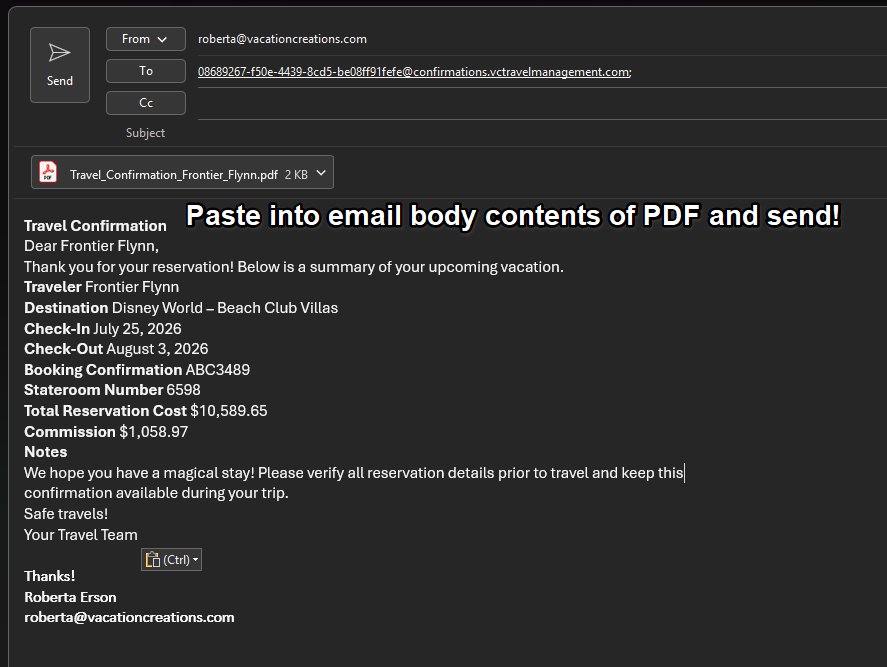
Open the PDF, copy its contents, and paste them into the body of a new email before sending it in. Here’s how:
1. Open the vendor’s email and open the attached PDF.
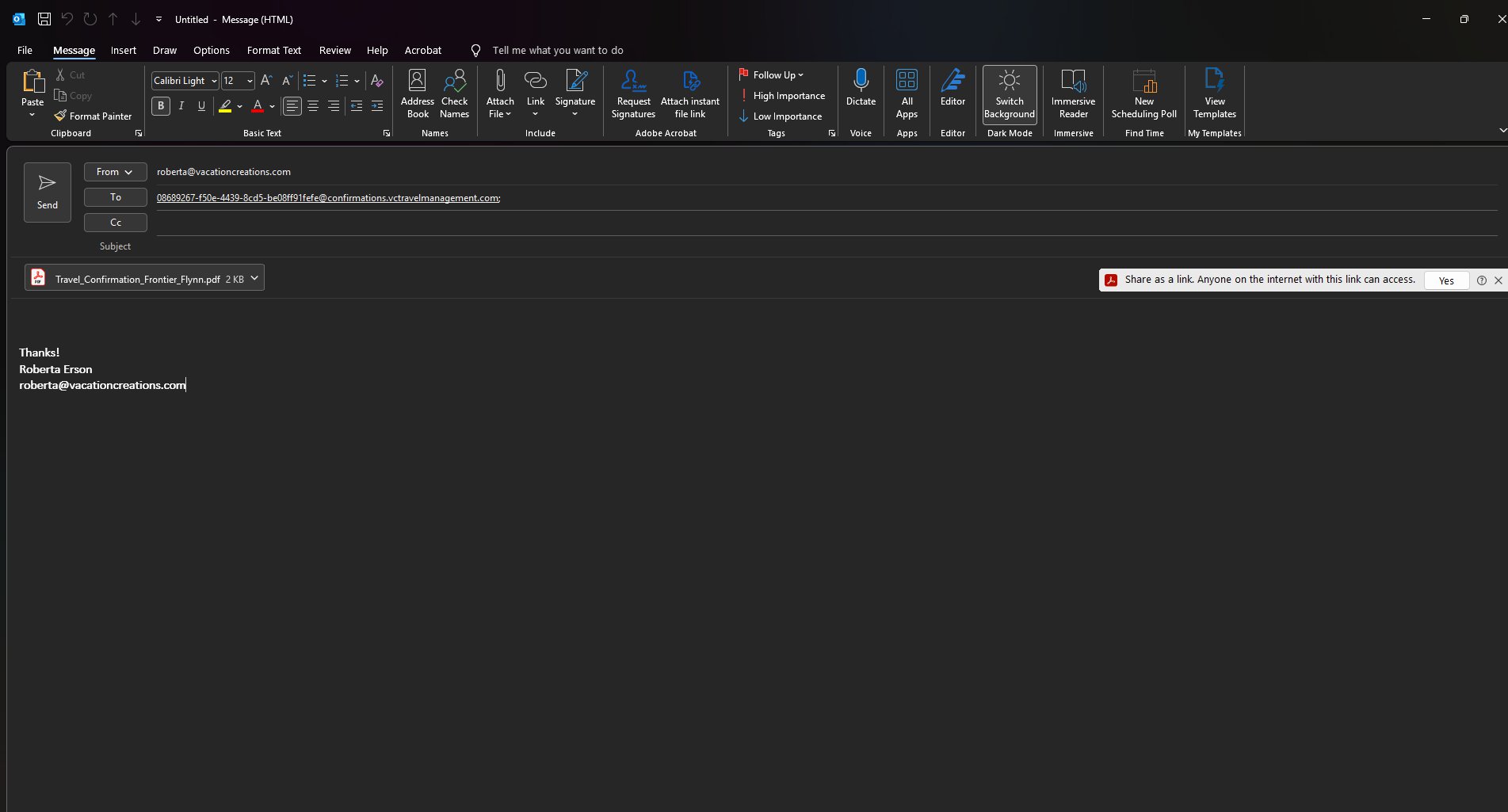
2. With the PDF open, select all the text, then copy it.
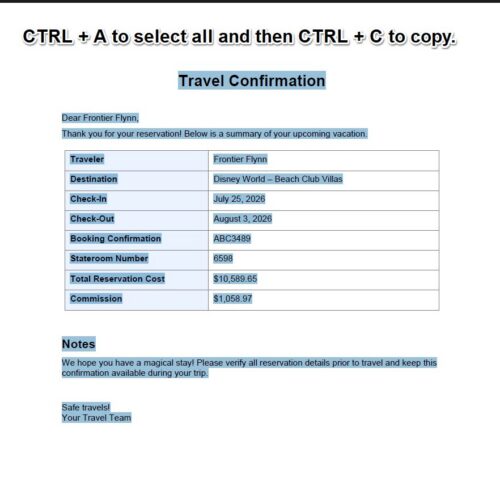
3. Start a new email addressed to your confirmation email address, and paste the copied content into the body. Then send.